
Your SCCMLS membership gives you access to technology that makes accessing your market easier. One of those tools is the Radius Search feature built right into Flexmls Quick Launch. Narrowing your search doesn’t have to be complicated. Instead of filtering by zip code or drawing a custom map shape, you can pull listings within a specific distance from any address in just a few keystrokes. Here’s how to do it step by step.
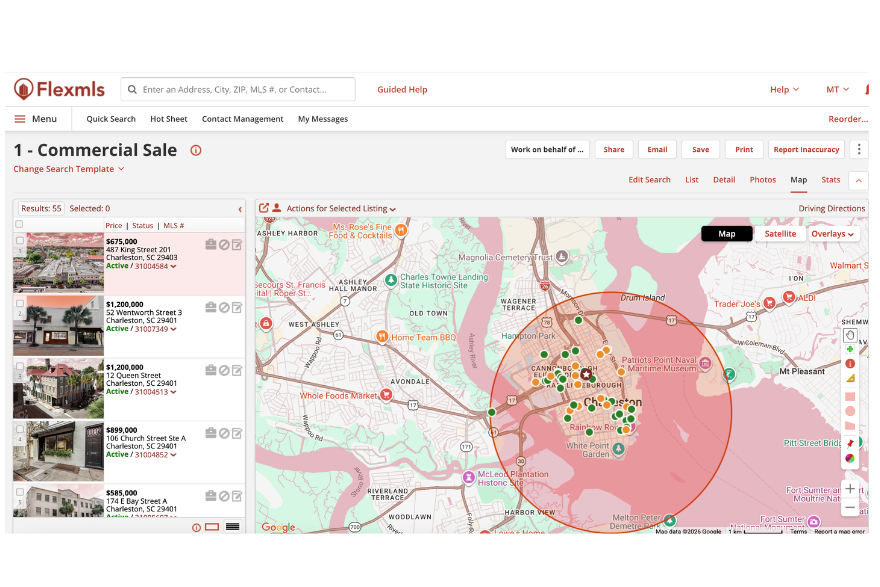
What is a Radius Map Search?
A radius search lets you pull listings within a specific distance from any address you choose. Instead of drawing a custom map shape or filtering by zip code, you simply type in an address and a distance and Flexmls does the rest, helping you find listings quickly. It’s one of the fastest ways to circle in on what’s available in a specific area without a lot of extra steps, which can save time.
Step 1: Start in Quick Launch
From your Flexmls login homepage, use the Quick Launch search bar at the top of the screen. It acts as a quicklaunch point, giving you a single place to begin your search.
Step 2: Type Your Search
There are two ways to enter a radius search in Quick Launch:
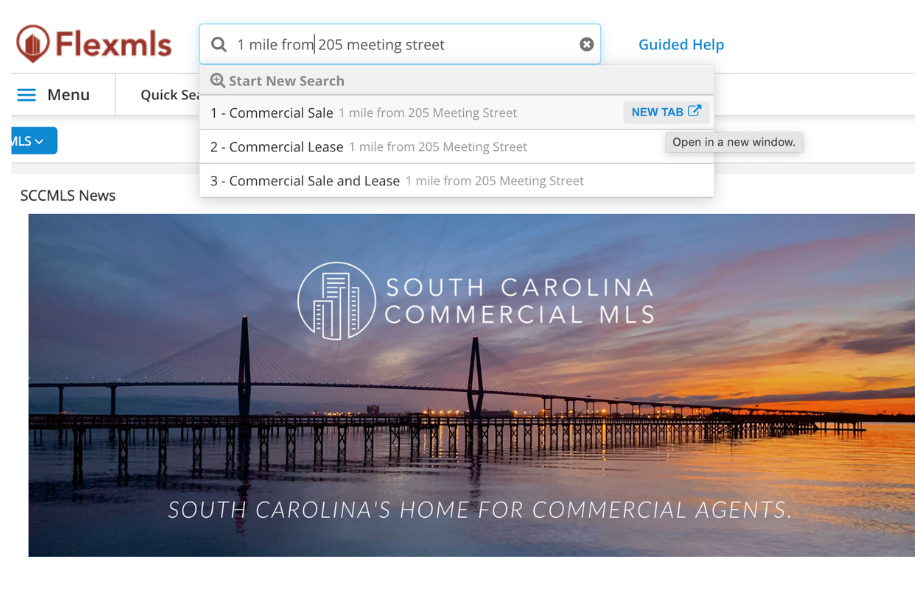
- By distance: Type a whole number followed by the address. For example, “1 mile from 205 Meeting Street.” This will pull listings within that exact radius.
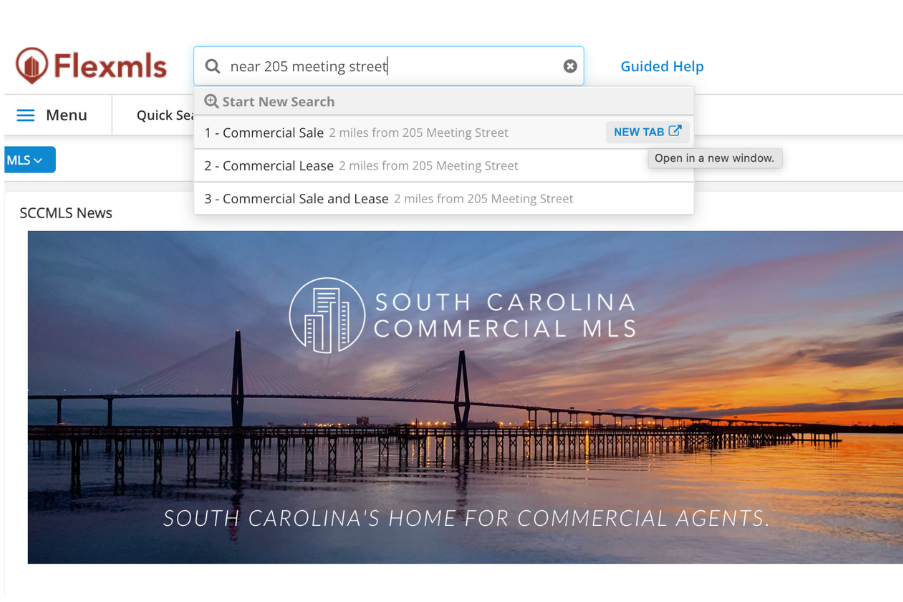
2. By “near”: Type “near” followed by the address. For example, “near 205 Meeting Street.” Using “near” automatically triggers a two-mile radius around that address.
Note: Radius distances must be entered as whole numbers. Decimals won’t work here. If there’s a problem, check the address format first. A small wording change often helps. That simple tweak can fix most entry issues.
Step 3: Choose Your Listing Type
Once you type your search, Flexmls will prompt you to select the type of listings you want to see. Select whichever fits your needs from the available list. You can even open results in a new tab to scroll listing photos and keep your original search handy simultaneously. That makes it easier to return to your original search after viewing a result. It can also help if you switch between tabs while comparing results.
Step 4: View or Refine Your Results
Your results will populate on a map view showing all available listings within your chosen radius. From here you have two options:
- Stop and explore: Browse everything within the radius as-is. You can zoom in or out as needed.
- Narrow further: Adjust the radius to tighten your results even more around your target area
As you refine the radius, updates happen on the map view. The map view makes it easy to see the geographic spread of listings at a glance, so you can quickly decide if you need to expand or pull back your search area in relation to a specific place. It’s a nice way to understand coverage around a target area.
Why Use Radius Search?
When you’re working with a client who has a specific location in mind—near a highway, a competitor, a customer base—radius search gives you a precise, visual way to show them what’s available and help provide a clearer view of options around that target location. It’s faster than building out a full search from scratch, helps your team work more efficiently, and is flexible enough to adjust on the fly. Flexmls is a great option when you need to refine location-based searches quickly.