
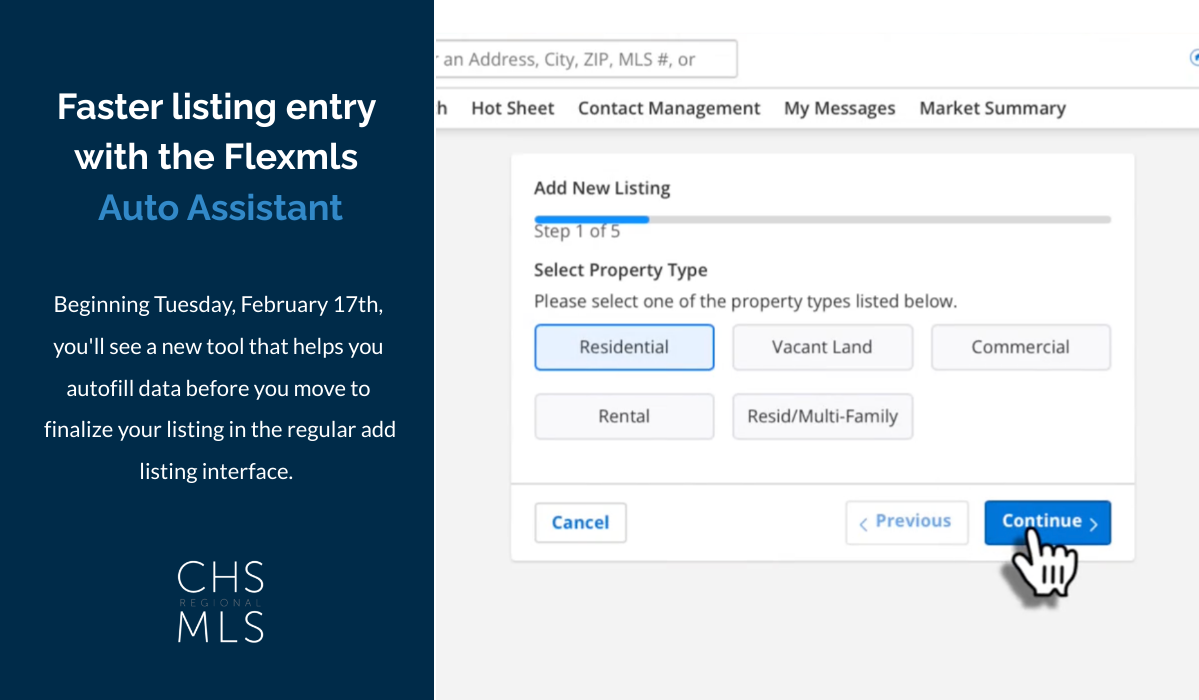
FBS Data is excited to announce their new Auto Assistant in Flexmls, a multi-step Add Listing form that you complete prior to moving on to the full listing entry page.
When you begin to add a listing (via app or desktop), Auto Assistant will collect data such as property type, property address, geo location, tax data and more, and will pre-populate the listing entry form with that information—saving you time and improving data accuracy. You will then continue to the regular add listing screen to finalize.
This tool will launch for CHS MLS on Tuesday, February 17th.
Auto Assistant saves time, increases efficiency, and improves data accuracy by having key data from trusted sources pre-populated and completed, before you even start entering data into the listing entry form. Currently, the regular listing entry form will remain the same.
As the agent, you make the decisions on autofill options, and you can review and confirm all data before publishing.
Step 1: Select Your Property Type

Step 2: Select Listing Agent If you add listings on behalf of other members in your office, you’ll be able to select the appropriate listing member. If you only add listings on behalf of yourself, this step will not appear, and you’ll automatically be entered as the listing member on the listing.

Step 3: Search Your Address If you can’t find your address, you can enter the address manually using the “click here” option.

Step 4: Verify Address and Confirm Geo Location
Verify that the listing address is correct. To confirm the geo location, click Use This Location. Click Continue to proceed.Note: The location of the pin cannot be adjusted. If the displayed address needs to be changed, you can update the location in the Address section of the incomplete listing after you have completed the Auto Assistant steps.

Step 5: Select Data to Autofill
This step will find tax data that CRS may have for the address and previous listing data to autofill to your new listing. Previous listing data will only display to be copied if the prior listing was yours.
If Auto Assistant detects a previous listing and tax data, and if you have selected both options, the tax data will take precedence and pre-populate any duplicative information. If allowed, under “Copy Property Details” Auto Assistant will detect the most recent off-market listing, and you can use this listing to auto-populate listing data. If you want to see the listing details that will be copied over, you can view the previous listing information by clicking on the MLS # link.

Step 6: Finish Listing
Click Finish. Your listing will save as an incomplete listing. Open your listing, and see many fields pre-populated!
Don’t forget – you’re always responsible for checking the accuracy of the data, regardless of the source! Be sure to review any auto-populated data before publishing.